How to Create a WordPress Blog
Congrats! You’ve made the decision to build a WordPress website. So you’re ready to get your blog up and running? Although this may seem like a daunting task, I’m here to help you along the way so you can tackle some of the technical challenges that may arise, as you embark on this journey. Would you believe the most difficult hurdle to overcome is actually just figuring out what direction to go in? I’ll narrow down your best options so you don’t have to do all of the research like I did.
Aside from health coaching and wellness blogging, I co-run a successful web design business and have helped hundreds of businesses with their marketing and web development. I’ve been designing websites for a while now, and have gone through the trial and error of what is effective and what isn’t. The best direction is always the easiest and safest (because let’s face it: nobody likes stress.) By me laying out the simplest path, you’ll cut through hours of researching and potentially doing things the wrong way.
1. Buy a domain from a domain company
All websites have to have a registered web address like www.yoursite.com. It doesn’t really matter where you buy a domain from. Your site won’t be faster for choosing one company over the other. I’ve used various different companies and my pick for domain registrar would be based on couple of factors.
Try to keep both your hosting and domain under the same account because step 3 will be more complicated for you otherwise. So it makes most sense to buy your domain from where you buy in step 2.
2. Get Hosting


It is very important where your site is hosted. I’ve used a lot of different hosting companies but recommend only one because it is 5/5 in every area that is important. That company is Siteground and any other company is a distant second place when you factor features and price. WP Engine is also very good but they’re about twice the price monthly.
A. Support
Siteground has gone above and beyond for us in the past. They have a great ticket system and live chat launches instantly. Other companies have been a nightmare or just worse by comparison. You could ask support to install WordPress for you and they would do so complimentary – eliminating upcoming steps in this article.
B. Price
Get the middle plan called GrowBig. It is only a few dollars extra and you can take advantage of some of the speed increases not offered in their Starter plan. Their are no real benefits for you to get the GoGeek plan unless you plan on hosting a lof of WordPress sites there. Siteground isn’t the cheapest but it is pretty close.
C. Backups
You want your site to be backed up daily. Siteground will backup your websites files, database, and emails every day for 30 days usually around 5am. If you want to revert to last week or yesterday it is very easy to do in cPanel. If you’re not techy at all support will revert your site for you.
D. cPanel
Cpanel is a graphic interface that makes doing hosting tasks easy for the 99% of us that aren’t nerdy enough to use things like SSH keys. I’ll be explaining a couple steps below using cPanel. 2 important tools your hosting must have are the Let’s Encrypt SSL and Softaculous’ WordPress Installer. Makes things so easy.

3. Point the Domain at the Hosting
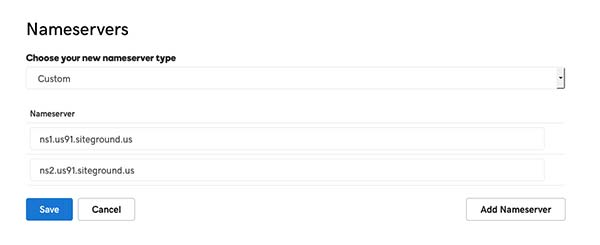
You bought the domain and the hosting. Now they need to be connected. Think of your hosting company as an address where the files are parked. Your domain needs to point at those files or else nothing happens. This is changing the DNS or changing the Nameservers. If you bought the domain where your hosting was purchased than usually you don’t need to do anything below.
Your Nameserver of your host starts with something like NS1.domain.com and NS2.domain.com. First, you need to find out what your nameservers are. They’re usually listed in the admin area of your hosting. Then you need to input those nameservers in your domain’s DNS settings. There should be at least 2. At your domain this is usually something called ‘Manage DNS’. Replace the default or old Nameservers with the ones from your hosting company. If you want to cheat call up support and they’ll do it for you.
4. Activate SSL
One great thing about Siteground and WP Engine is they include an SSL which can be activated FREE. If you are using another host you’ll have to install an expensive SSL manually or have their support do it. Below we’ll be installing the FREE SSL from Let’s Encrypt.
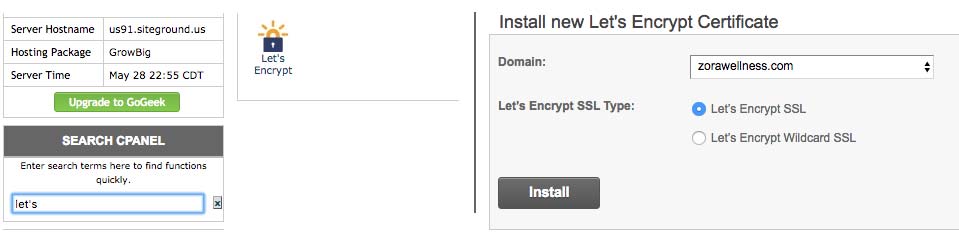
Go to Let’s Encrypt and enable your site to be https:// which will make the site secure and have the green lock. Google rewards sites that have SSL / https and you’ll need this if you ever monetize anything with a shop or membership. If you start installing the WordPress with http:// then you’ll have to do this step at a later point which will be more of a headache for you. Below are visual steps to installing Let’s Encrypt SSL in Cpanel.
5. Install WordPress with the Softaculous WordPress Installer
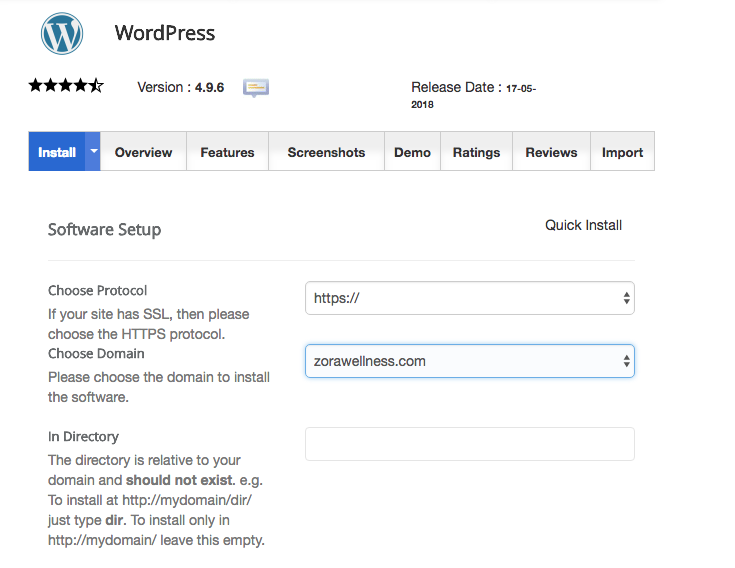
Installing Worpdress manually would be another post in itself. You can install WordPress in a few minutes using Softaculous’ WordPress Installer tool. Most hosting companies offer this tool as well like BlueHost. Make your WordPress password extremely difficult to figure out with a ‘Strong’ designation. Make sure your user name isn’t admin, test, or the name / domain name of your site. Those are a hackers first guesses. Wait a couple of minutes… your done.
6. Find a good theme
WordPress out of the box is pretty vanilla. A theme is the overall style of the font end and offers customization features in the admin. Do some google searching and some investigating. Look at the theme’s demo and find one that matches the style you’re going for. Here are some recommendations for themes you can’t go wrong with.
the7
Avada
Xtheme
Jupiter
Divi
A. Support and Updates
Check out the reviews. Make sure that peoples questions are being answered on sites like Themeforest. Is the theme compatible with the recent version of WordPress. Is it updated often or is the designer doing this as a hobby. Find a design group that will be there when something goes wrong.
A. Price
What is your budget? There are plenty of free WordPress themes out there. Some of them are pretty good. But I would recommend you buy a premium theme. These paid themes will generally give you better support and much more rich features. You can get an amazing theme for around $50.
C. Layout Builder
Whether you’re a developer or someone who’s never written a line of code, you’re going to want something that will make your layout ideas possible. WordPress ships with a standard editor that is one column for text and images. Find a theme that comes with a layout builder like Visual Composer, Beaver Builder, or Divi.
https://www.youtube.com/watch?v=mMBaQiG9Er4
6. Get Plugins
When you install your theme, the developer will often recommend or require plugins. Plugins are addons that do an additional function not native to WordPress. Usually required plugins come packaged with the theme. They often include Revolution Slider and Visual Composer. If you plan on doing a shopping cart make sure that your theme is WooCommerce ready. Here are some great utility plugins that could be used on any site:
Contact Forms: Contact Form 7
Optimize your site for Google: Yoast SEO
Be efficient and duplicate pages and posts: Duplicate Post
Better searching of site: Relevanssi
Image compression: Compress Jpeg and PNG Images
6. Get Security
WordPress is the most hacked thing ever. Hackers are constantly sending out scripts looking for vulnerabilities. If you install a security plugin your site will not be considered ‘low hanging fruit’. The best security plugin hands down is Wordfence. By just activating it your site is much more secure with their Firewall and protection against brute force attacks. Also block SQL Injections with this plugin: Block Bad Queries.